| Identifying your model of PSone | |||||||
|
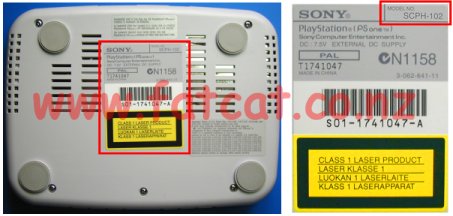
Before dismantling your PSone turn it over and look at the label on the bottom of the case as shown below. On the top right corner of the label it will indicate what model you have. This guide is for the model SCPH 10x, where x is either 2 (PAL, NZ/AUS/UK), 1 (USA) or 0 (JAP). If this model number is different do not use this guide. All New Zealand and Australian models will be marked as SCPH 102
|
|||||||
| Minimum equipment required | |||||||
|
Philips #1 (or #2) Philips head screwdriver. Container to place screws etc in Clean Work Area Time - Take your time |
|||||||
| Step 1: Removal of the top half of the case | |||||||
|
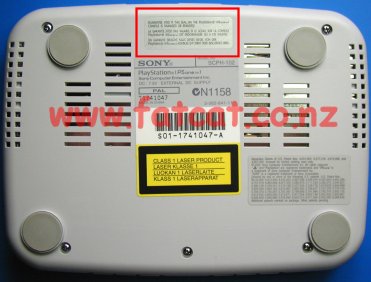
WARNING: This model is the current
PlayStation being sold in New Zealand and the chances are it still under
warranty or you may have an extended warranty. The Red box shows where the
warranty seal is located.
The removal or tampering of the
warranty seal
will NULL and VOID any WARRANTY you have on
your PSone. Unplug all cables, controllers, memory cards etc from PSone. Remove any CD from PSone. Turn your PSone so the bottom is facing
you. |
|
||||||
|
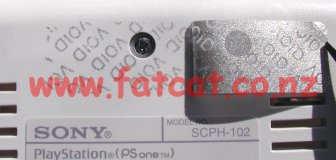
Locate the warranty seal as shown in the Red box in the above photo. Carefully peel this seal back to uncover a hidden screw as shown in the close-up photo. |
|
||||||
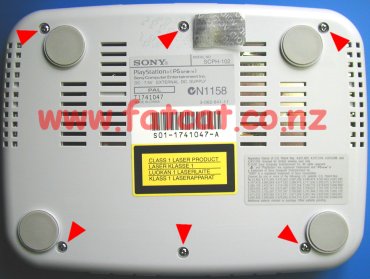
| Remove
the SIX screws as shown by the Red arrows in the photo. |
|
||||||
| Turn
the PSone back over, and lift the top half of the case away and place
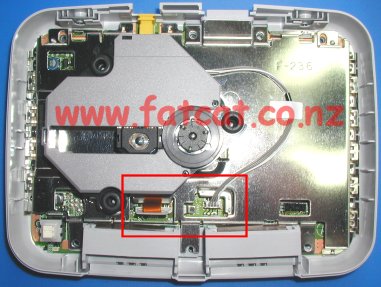
aside. Now you should see what is shown in the photo. Red box in the bottom centre of the photo is where the Laser Drive connectors are located. And the Laser Drive unit above that. |
|
||||||
| Step 2: Disconnection of the Laser Drive cables and removal of the Laser Drive | |||||||
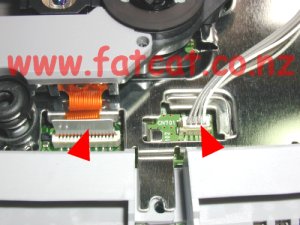
| Disconnect
the Laser Controller cable (orange ribbon cable) and the Laser Power
cable (4 way cable) from the Mainboard by pulling firmly in a upward
motion at the base of the connectors. DO NOT wiggle the cables to remove, you will only damage the connector pins or lift away the connectors pins from the Mainboard. Carefully lift away the Laser Drive Unit and place aside in a safe place. |
|
||||||
| Step 4: Removal of the Metal Base Plate | |||||||
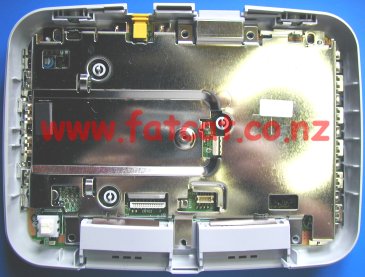
| To
remove the Tin Plate R.F. Shield, simply lift up and away from the case.
Then place aside. |
|
||||||
| Step 5: Removal of the Mainboard | |||||||
|
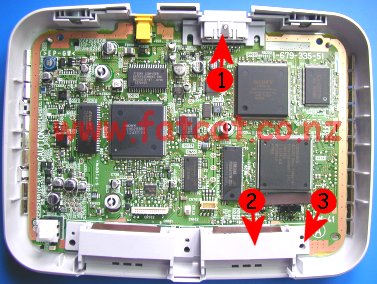
There is a little knack to getting the Mainboard out of the bottom case,
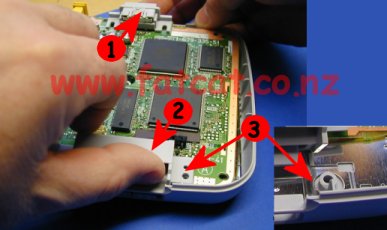
there is a lug that hold the Mainboard in-place. Lift the Mainboard up from the case at the AV Connector at the rear at Point 1 in both the photos. Then while holding the rear of the Mainboard up, lift the Mainboard up at the front from the right Controller Port at Point 2 in both the photos. This allows the Mainboard then to lift up over the lug which has a tapered edge and is hidden at Point 3. |
|
||||||
| Once
the Mainboard has been lifted over the lug (see close-up in the second
photo at Point 3), you then just slide the
Mainboard back towards point 1 and lift out. Now you have to identify what variant of the PSone you have. |
|
||||||
| Step 6: What Mainboard to I have and what Installation Guides do I use? | |||||||
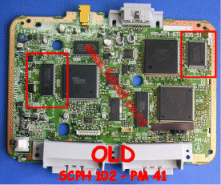
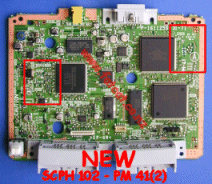
| You
need to identify what version of the Mainboard you have so you can use the
correct installation guides. Pick up your Mainboard and compare it to the two photos below. The photo on the left is from the first version of the PSone in New Zealand, this version has two memory chips on either side of the board as shown inside the two red boxes, and a board designation of PM 41. The photo on the right is from the new version of the PSone that is starting to appear in New Zealand, this version does not have the two memory chips on either side of the board and a board designation of PM 41(2). The two red boxes indicate where the memory chips would have been. |
|||||||
|
|||||||
| Re-Assembly of your PSone SCPH 102 | |||||||
| Just simply
reverse the disassembly process starting at Step 5. Ensure that you push all cables firmly into the respective sockets. Any questions relating to this guide please email techsupport@fatcat.co.nz |
|||||||